AR Invoice Register
Create a listing of Account Receivable Invoices by Financial Period, a specific date or date range and Location.
| Access |
| Grant permission to User Profiles in Access User Profiles > select a User Profile > Menu Security > Reports > Main Menu > Accounting. |
| Grant permission to the individual report> Accounting > AR Invoice Register. |
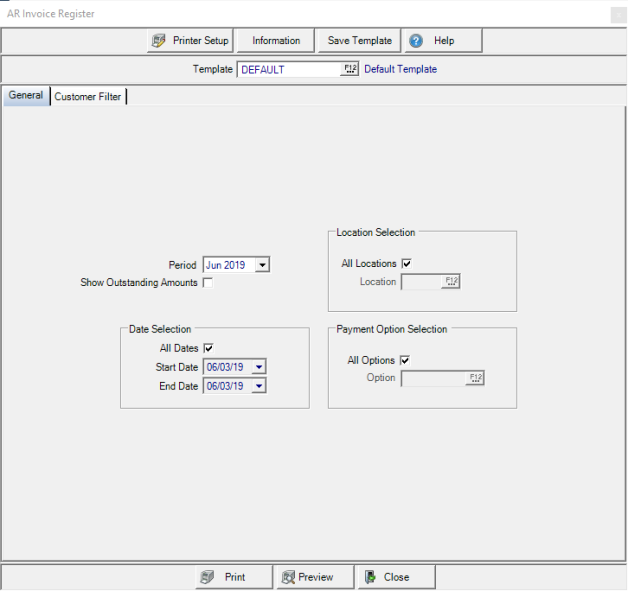
Create Your Report
Period defaults to the current financial period. Click the drop down to choose a different Period.
Select Show Outstanding Amounts to include the remaining amounts due on invoices.
All Dates is the default Date Selection for this report. Remove the checkmark and specify a range of dates or an individual day.
- Start Date- Enter a Start Date. To focus on one particular day, select that date in both the Start and End Date fields.
- End Date- Enter an End Date.
All Locations are selected by default in Location Selection. Remove the checkmark and enter a specific Site ID or select F12 to search.
In the Payment Option Selection section, retain the default of All Options or remove the checkmark and enter the ID for a Payment Option or use F12 to search.
Learn more about applying a Customer Filter here.
Select Preview to view the report onscreen.
Select Print to send the report directly to the default printer.
 View a sample report here.
Understanding Your Report
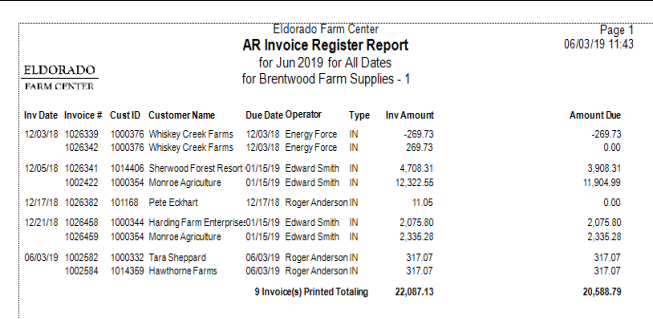
The Inv Date, Invoice Date and Invoice # Invoice number are displayed.
The Cust ID, Customer ID, and Customer Name are included on the report.
Invoice Due Date for all invoices are included.
Operator is the name of the Operator who processed the transaction.
What Transaction Type is associated with the invoice is included. See Transaction Types for more information.
Inv Amount displays the Invoice Amount, the total Amount of the invoice.
If Show Outstanding Amounts has been selected when creating the report, the Amount Due column is included.
A Report Total includes a count of the Total number of invoices on the report and the totasl of the Inv Amount and Amount Due columns.